How to track players in EA FC 24 and FC 25 Career Mode
Connect your Windows career to FC Career Top with Live Editor. The Lua script uploads your squad so you can follow overall ratings, potential and player changes in the browser.
What you need
- EA FC 24 or EA FC 25 on a Windows PC.
- A compatible FC 24 Live Editor or FC 25 Live Editor. Follow that project’s installation and game-build compatibility instructions.
- An FC Career Top account and an internet connection to the dashboard and API.
- Windows curl and permission to write files in the directory used by the Lua engine.
The upload workflow runs on Windows. A console career cannot execute this Live Editor script.
Connect your career in seven steps
- Open the FC Career Top dashboard.
- Register with an email and password, then sign in with those credentials.
- Select FC 24 or FC 25 in the game-version selector.
- Start the matching game through Live Editor and load your Manager Career Mode save.
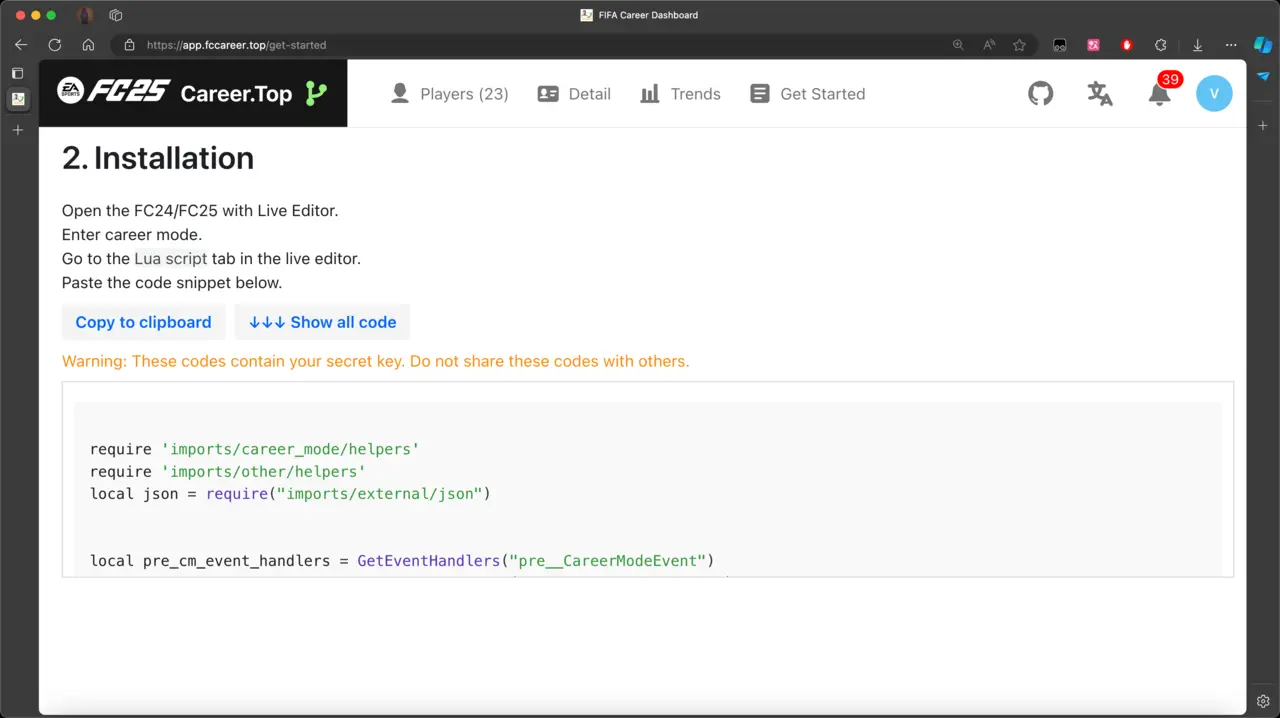
- Open Get Started in the dashboard and copy the generated Lua script.
- Open Live Editor’s Lua engine, paste the script and execute it.
- Check the Players page for the first snapshot. Further uploads happen as in-game weeks pass while the script’s event handler is active.
Your script includes your personal API key. Keep it private. After refreshing the key in Settings, copy and run the new script.
Read your squad’s development
- Players: search and sort the squad, compare ratings and potential, and find position-ranking badges.
- Player Trends: follow overall rating and potential across career dates.
- Player Detail: inspect current attributes, available PlayStyles and a player’s growth chart.
- Notifications: see changes to overall rating, potential, skill moves and weak foot.
- Settings: choose notification types and manage your account and API key.
The dashboard supports English, Simplified Chinese, French, German and Japanese. FC 24 and FC 25 records are selected separately.
Troubleshooting and current limitations
Why are my players missing?
Check the selected game version, load your Manager Career Mode save, inspect Live Editor’s logs and confirm the script’s upload URL is reachable from your Windows PC.
Why does a command window appear?
The script writes a JSON file and runs Windows curl to upload it. The command window can briefly take focus; let the upload finish.
How do I fix “Permission denied”?
Allow the script to write in its working directory, typically the game directory.
Can I track several saves or every historical attribute?
There is no multi-save selector. Use one career per account and game version. Historical charts track overall rating and potential; detailed attributes show the current snapshot.
Can I combine this with other Lua scripts?
The tracking script removes existing career-mode event handlers before registering its own. Check event-handler registration when combining scripts.
For self-hosted installations and networking between computers, see the development guide. For help, contact the project or open a GitHub issue with the game version and relevant logs, with API keys removed.